 Kewbot
In short
Connecting your number to Kewbot is called onboarding, and it's done through Meta's official Embedded Signup. You don't transfer ownership of anything: your business still owns its WhatsApp account and its number. What you do is authorize Kewbot to send and receive messages on your behalf through the official Cloud API. It takes a few minutes and it's five steps.
What this process does NOT do
- You don't hand over your number or your business to anyone. You remain the owner.
- Kewbot doesn't access your personal WhatsApp chats. Only the WhatsApp Business account you connect.
- It's not permanent or irreversible: you can revoke access from your own Meta account whenever you want.
- You don't pay anything to connect. Messages are billed by Meta directly to your account, at the official rate.
When a business wants to use WhatsApp professionally (multiple agents, automation, templates, campaigns), it needs to connect to Meta's official Cloud API. That link between your WhatsApp account and the platform you'll use is done through a Meta wizard called Embedded Signup. Below we show you exactly what it looks like, with real screenshots.
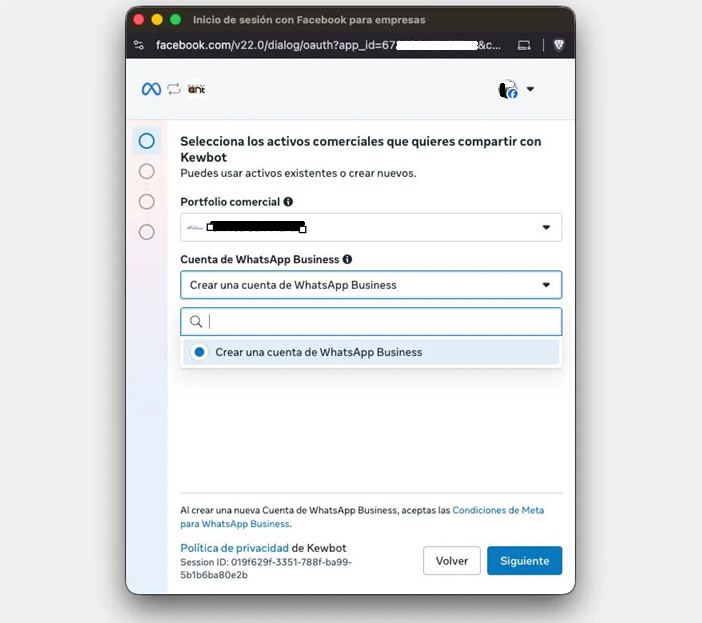
You select what you share with Kewbot
The wizard asks you to choose your business portfolio (your company on Meta) and your WhatsApp Business account. If you don't have a WhatsApp account yet, you create one right here by choosing "Create a WhatsApp Business account".
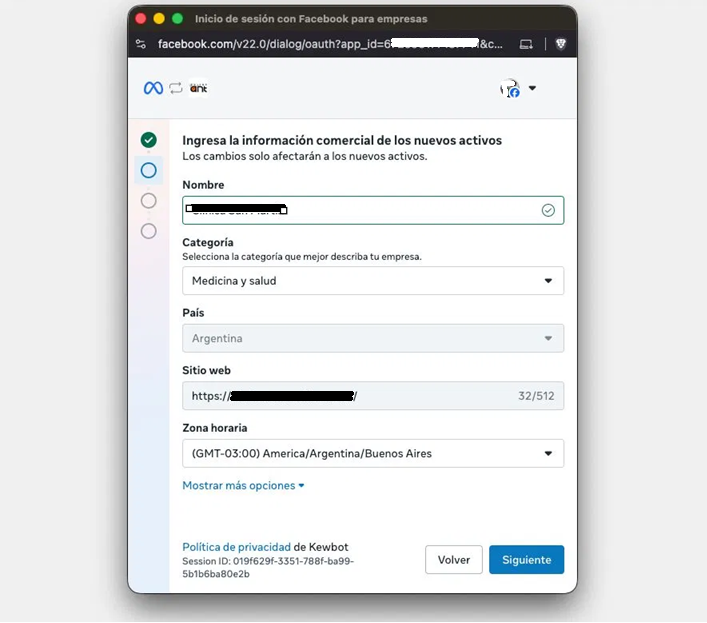
You fill in your business information
Business name, category, country, website and time zone. Meta uses this data to identify and verify your business. The name should exactly match your official documentation.
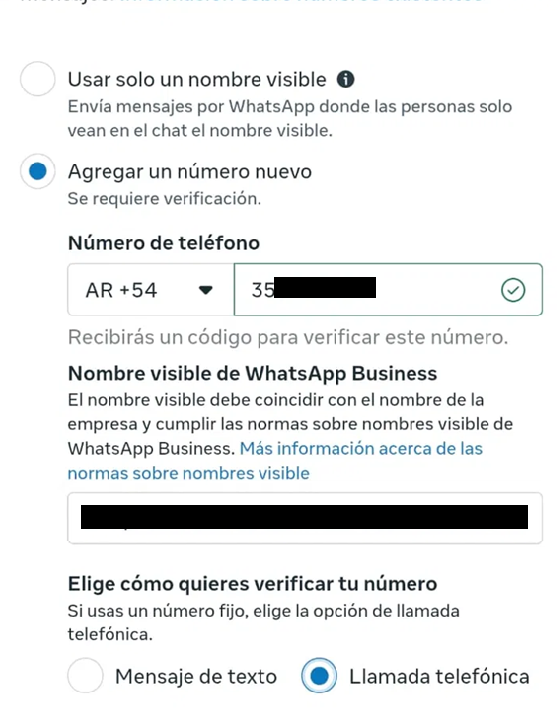
You add and name your phone number
You choose "Add a new number", enter the phone number and the display name your customers will see in the chat. The name must match your business and comply with Meta's guidelines.
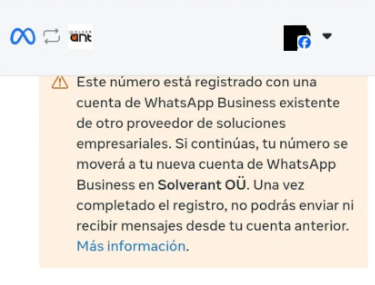
⚠️ If your number is already on another WhatsApp account
This is very common. If the number was already used with another provider or in the WhatsApp Business app, Meta warns you that the number will be moved to your new account. This is normal and expected: you don't lose the number, it simply becomes managed from your new account.
Once the move is complete, you won't be able to send or receive messages from the previous account with that number. This is exactly the step that "releases" your number from the old provider and brings it to the new one.
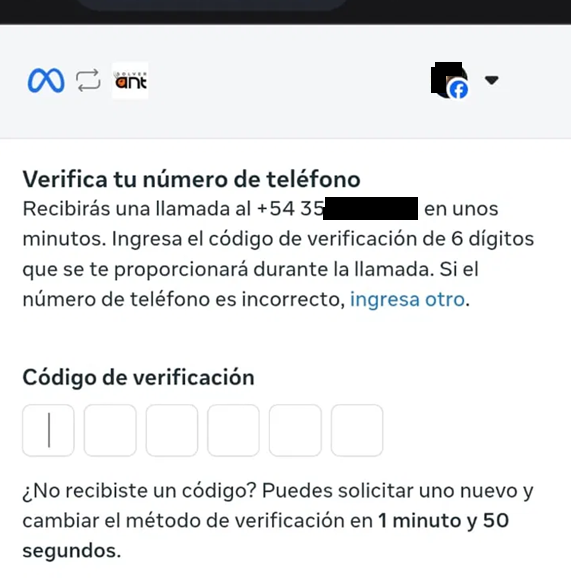
You verify the number is yours
Meta sends you a 6-digit code by text message or phone call. If your number is a landline, choose the call option. Enter the code and you're done.
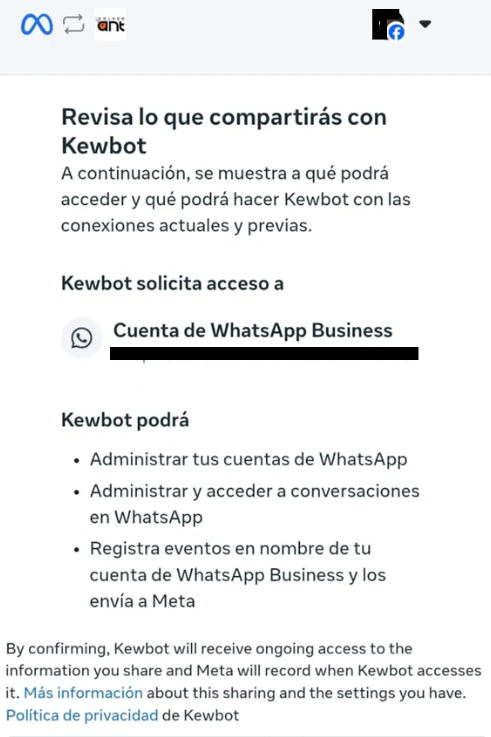
You authorize Kewbot (and see exactly what it can do)
This is the most reassuring step, because Meta shows you with full transparency what Kewbot will be able to do with your account. No more, no less:
- Manage your WhatsApp accounts
- Manage and access the conversations of that WhatsApp Business account
- Log events on behalf of your account and send them to Meta
That's it. Kewbot doesn't access your personal Facebook, your private chats, or anything outside the WhatsApp Business account you're connecting. You confirm and the permission is active.
Your account is connected
Meta confirms: "Your account is connected". Your assets are created and your number is live on Kewbot. From here you can send templates, receive messages and work with your agents from the platform.
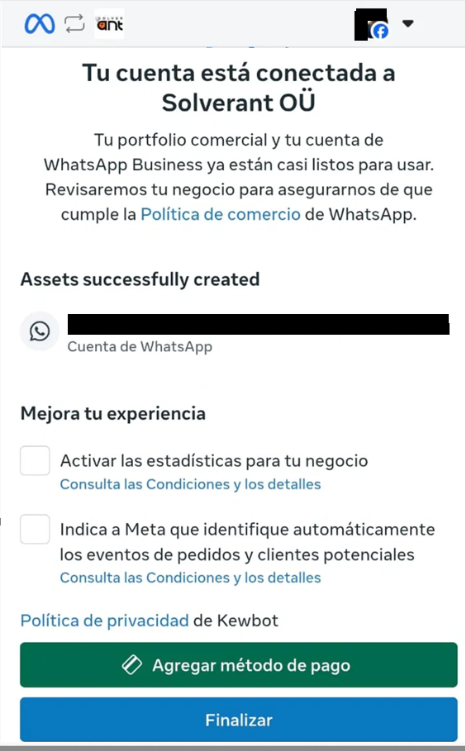
The entire process runs on Meta's official infrastructure. At no point are you asked for a WhatsApp password, and your personal account is never touched. And since the number still belongs to your business, tomorrow you can decide to manage it from wherever you want: control is always yours.
Want to connect your number?
We guide you through the whole onboarding. Get in touch and we'll set it up.
Go to Kewbot →