PhoneBook — Known Numbers List
The PhoneBook module lets you register and maintain a list of known phone numbers for the company. Its main purpose is to allow the system to automatically recognize customers when they send a WhatsApp message, displaying their name instead of their number and enabling their data to be used across flows, messages, and campaigns.
Contact list
This screen shows all contacts registered in the database, with search, selection, and export tools.
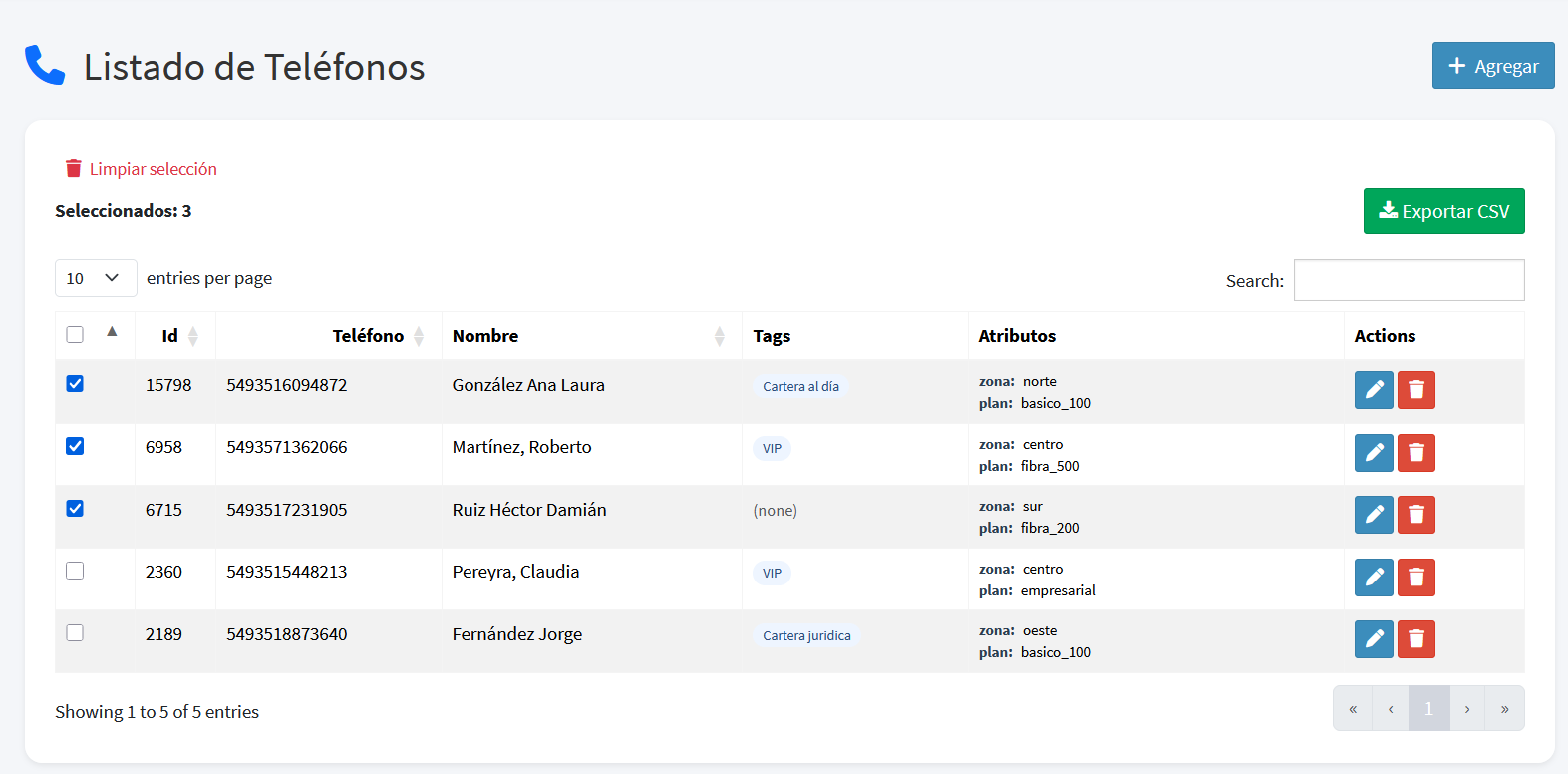
| Field | Description |
|---|---|
| Id | Unique read-only identifier. |
| Phone | Number in international format (e.g., 5493515895645). |
| Name | Contact's full name. |
| Tags | Labels assigned to the contact. Used for filtering and segmentation. |
| Attributes | Custom key-value pairs. For example: zone: rural, company: central. |
| Actions | Edit or delete the record. |
Search and filtering
The Search field filters results in real time across all visible fields. This allows, for example, typing VIP to display only contacts with that tag, or typing part of a number or name to locate a specific record quickly.
Selection and CSV export
Contacts can be selected individually or in bulk and exported as a CSV file. This file can then be imported directly in the Campaigns module to create segmented sends.
Typical workflow:
- Search by tag or attribute (e.g.,
overdueorzone: rural). - Select the filtered contacts.
- Click Export CSV.
- Import the file when creating a new campaign.
The Selected counter shows how many records are currently active in the selection.
Cross-page selection memory
The selection persists as the user navigates between pages of the list. If the user moves to the next page and returns, previously selected contacts remain checked. The "Previous selection restored" indicator appears when the system recovers a selection saved from an earlier visit.
To clear the accumulated selection, use the Clear selection button.
Add a new contact
The + Add button opens a form to register a new number.
| Field | Required | Description |
|---|---|---|
| Contact Phone | Yes | Number in international format, without the + symbol. |
| Contact Name | Yes | Full name of the customer. |
| Tags | No | Classification labels (e.g., VIP, overdue, north_zone). |
| Notes | No | Free-text field for internal observations. |
| Attributes | No | Custom key-value pairs. Add as many as needed using the + Add attribute button. |
Edit an existing contact
Clicking the edit icon on any row opens a modal directly in the same screen, without navigating to another page.
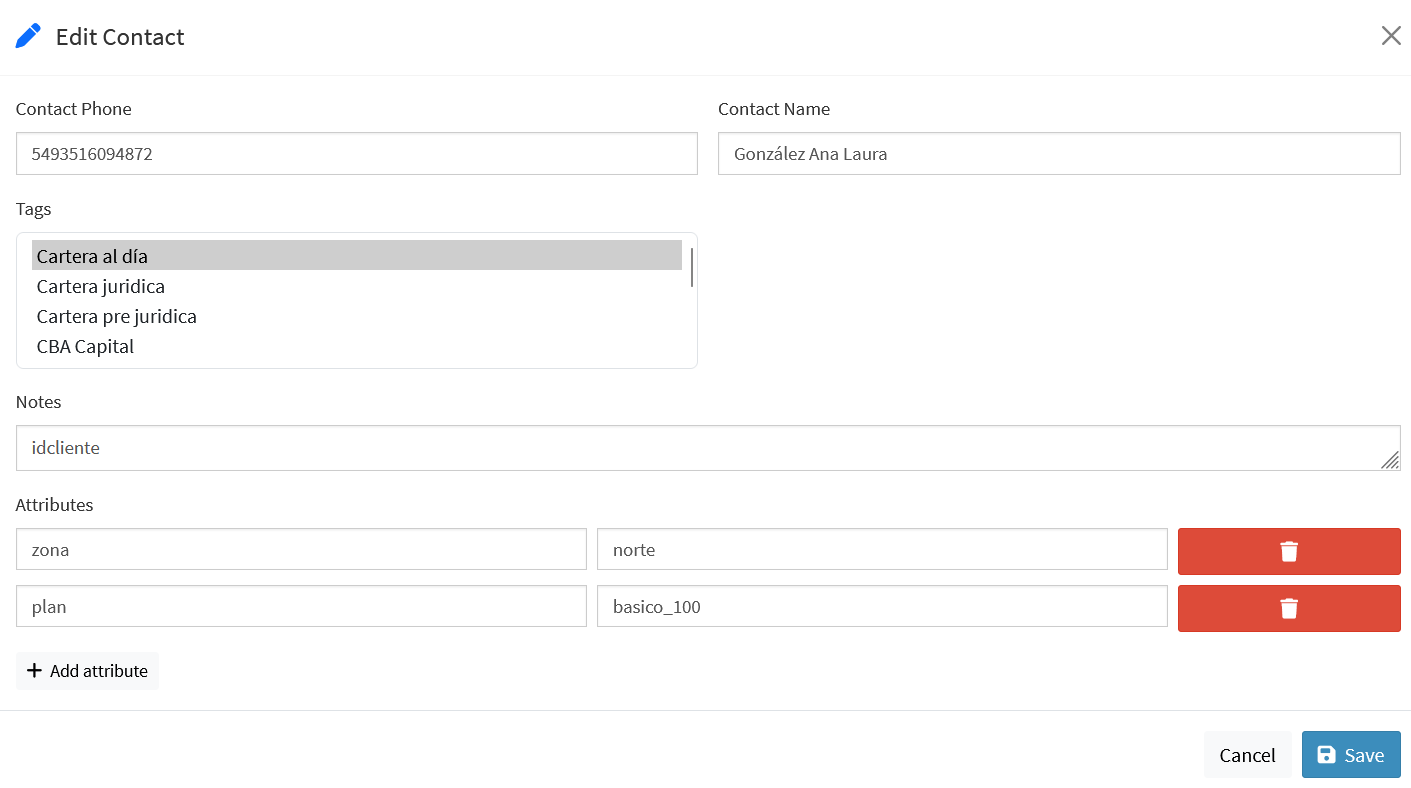
The modal displays all contact fields and allows modifying them, adding or removing attributes, and saving changes without losing the context of the list.
System variables
PhoneBook data is exposed as system variables that can be used in messages, flows, and API commands.
| Variable | Description |
|---|---|
_PHONE_NUMBER |
Contact's phone number. Available in the agent conversation header, in messages, and in external API calls. |
_NAME |
Name registered in the PhoneBook. |
_ATTR.xxxx |
Value of a custom attribute, where xxxx is the key name. For example, _ATTR.zone or _ATTR.company. |
These variables can be used as placeholders in Announcements (ANN), Menus (ITR), Replies (REP), and in the parameters of external API calls. They can also be displayed in the conversation header in the agent view, making it possible to see key customer data at a glance without opening their record.
Relation with other modules
- Campaigns: CSV export from the PhoneBook is the recommended way to build segmented recipient lists.
- Agents: when starting an outbound conversation, the agent searches for the contact in the PhoneBook before selecting a template.
- Flows and messages: the
_NAME,_PHONE_NUMBER, and_ATTR.xxxxplaceholders personalize the content sent to each customer. - External API: PhoneBook attributes can be included in payloads sent to external systems during the conversation flow.